 a0224d7c62
3.5 KiB
Usage Guide
Map Display and Editing
Map Display
The software supports displaying global and local maps, with map data coming from ROS topics.
To enable map display, ensure the following configuration in config.json:
{
  "topics": {
    "map": {
      "display_name": "Map",
      "topic": "/map",
      "enable": true
    }
  }
}
Map Editing
The following editing features are available:

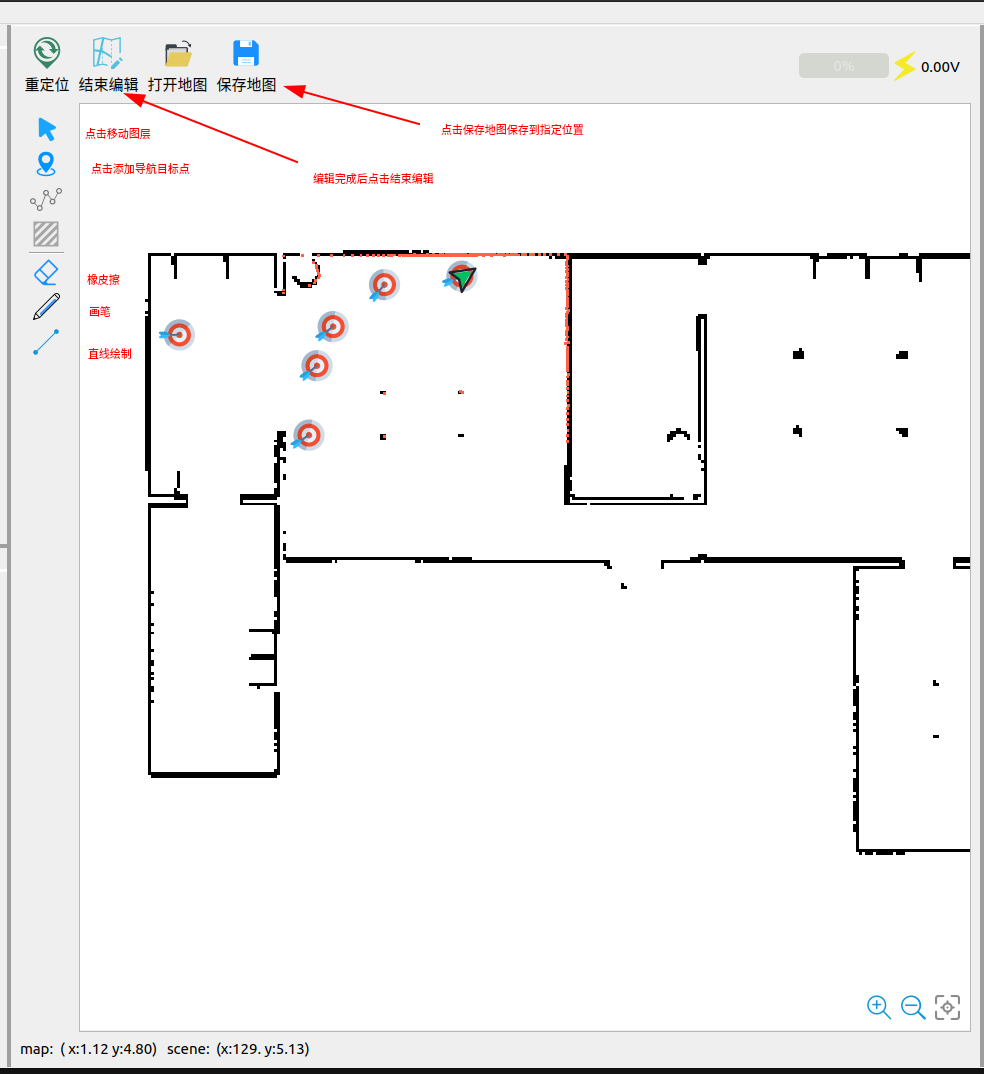
Topological Map
Support drag-and-drop setting of robot navigation target points:

Note: If navigation point publishing has no response, check the following configuration:
{
  "move_base_simple": {
    "display_name": "NavGoal",
    "topic": "/move_base_simple/goal",
    "enable": true
  }
}
Eraser Tool
Click the eraser to erase obstacles in the map:
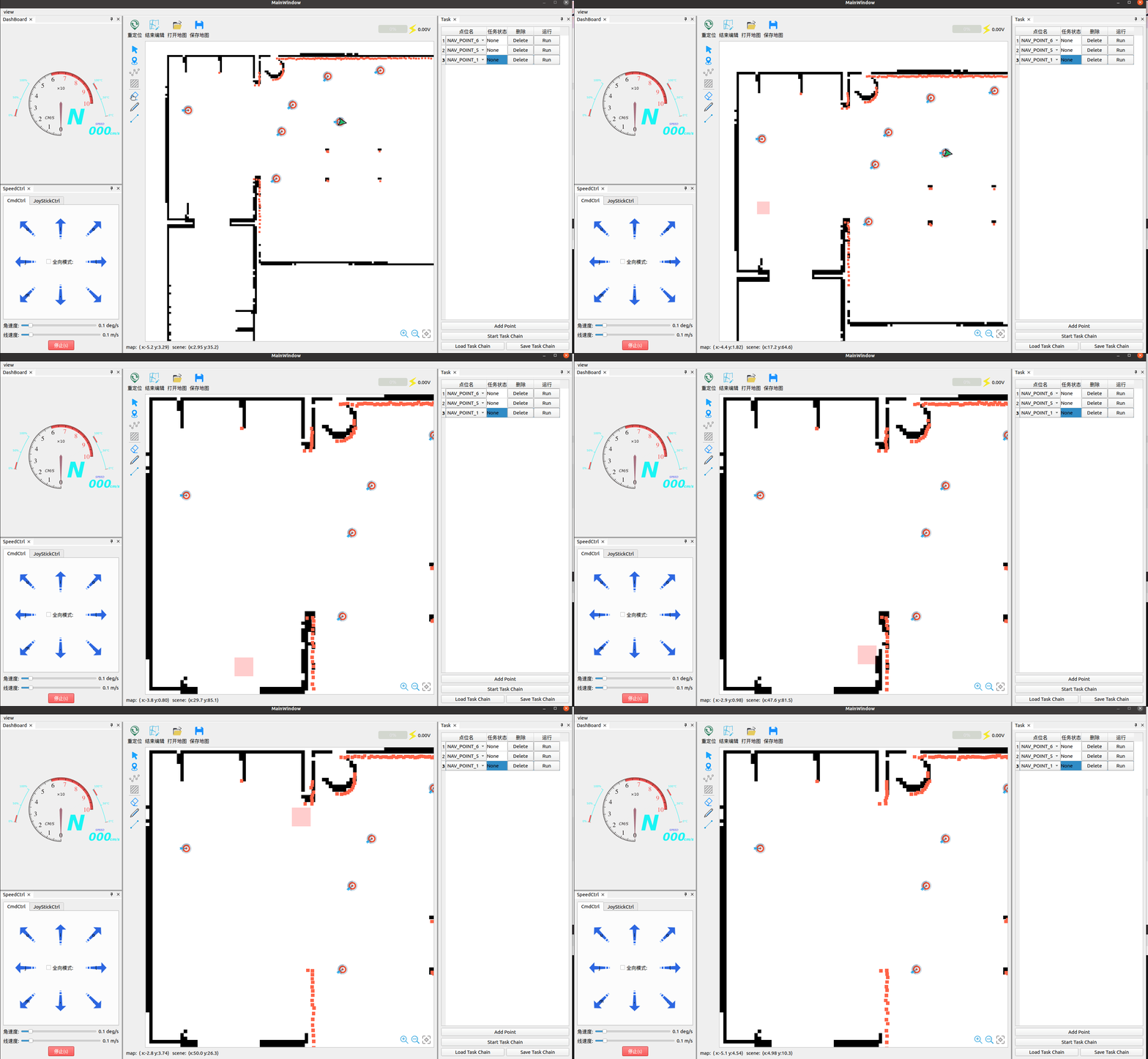
Pencil Tool
Use the pencil to draw obstacles:

Line Drawing
Draw straight lines on the map:

Map Saving
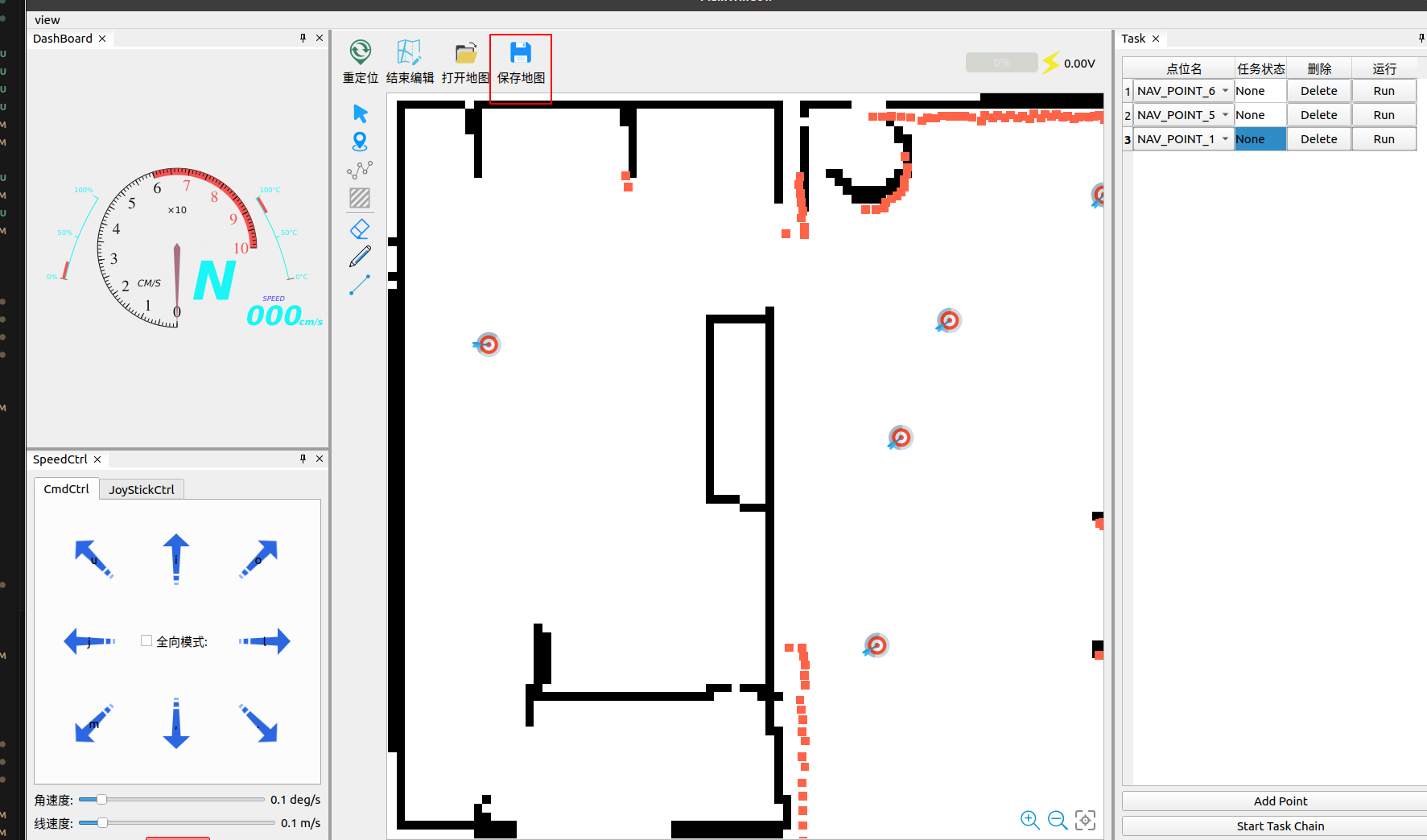
After editing, click the save button to save:
- *.pgm - Image data
- *.yaml - Map description file
- *.topology - Topological data (navigation point information)
Robot Control
Manual Control
Use keyboard or interface buttons to control the robot:

Note: Please check the manual control configuration:
{
  "velocity": {
    "display_name": "Speed",
    "topic": "/cmd_vel",
    "enable": true
  }
}
Robot Relocation
Hold left button to drag position, right button to rotate:


Note: Ensure correct configuration:
{
  "initialpose": {
    "display_name": "Reloc",
    "topic": "/initialpose",
    "enable": true
  }
}
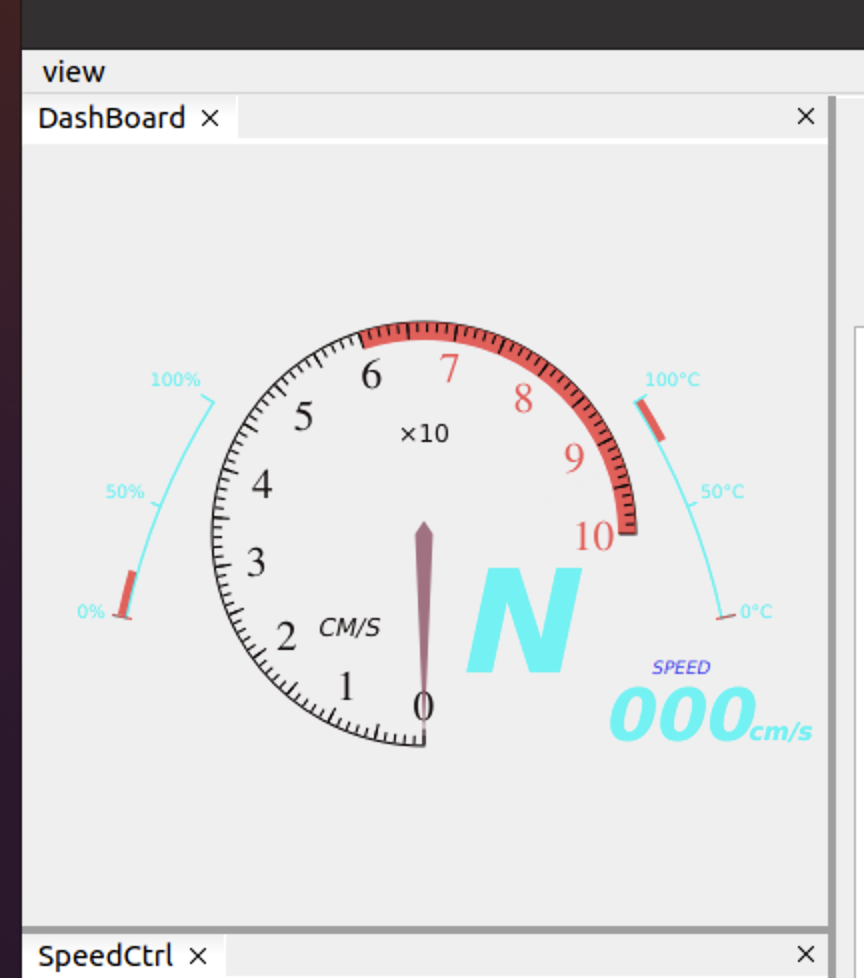
Speed Dashboard
Display real-time robot speed:
Required configuration:
{
  "odom": {
    "display_name": "Odometry",
    "topic": "/odom",
    "enable": true
  }
}
Battery Display
Show real-time battery status:
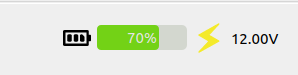
Configuration (using sensor_msgs::BatteryState):
{
  "battery": {
    "display_name": "Battery",
    "topic": "/battery",
    "enable": true
  }
}
Navigation Features
Multi-point Navigation
Set multiple navigation points to execute in sequence:


Usage steps:
- Add navigation points
- Set execution order
- Click "Start Task" button
- Monitor task progress
Camera Display
Support multiple camera streams:
- RGB and depth images
- Compressed transmission
- Ported from rqt_image_view
Configuration example:
{
  "images": [
    {
      "location": "front",
      "topic": "/camera/rgb/image_raw",
      "enable": true
    },
    {
      "location": "front/depth",
      "topic": "/camera/depth/image_raw",
      "enable": true
    }
  ]
}
Robot Shape Display
Support various robot shapes:
- Rectangle
- Circle
- Custom shapes
Configuration example:
{
  "robot_shape_config": {
    "shaped_points": [
      {"x": 0.5, "y": 0.5},
      {"x": 0.5, "y": -0.5},
      {"x": -0.5, "y": -0.5},
      {"x": -0.5, "y": 0.5}
    ],
    "is_ellipse": false,
    "color": "0x00000FF",
    "opacity": 0.5
  }
}